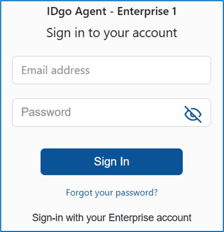
The IDgo Agent application is used by live agents to enroll and authenticate consumers and revoke IDgo accounts. The IDgo Agent application can be used standalone or can be framed inside call center, CRM, AI agent and other software platforms.
To access the IDgo Agent application, users need to set up an "agent" account using the IDgo Admin application that requires an email address and password as account credentials.
An alternative to setting up agent accounts using email and password credentials is Single Sign On (SSO), which can be configured for those enterprises using the Azure Active Directory service. This enables enteprises to manage account credentials and permissions for the IDgo service from their Azure Active Directory service. Configuration instructions to set up IDgo SSO are available here.
The IDgo enrollment, authentication and revocation experiences are described and demostrated in videos below. Each instance of IDgo Agent is branded for the enterprise so user interfaces and screens seen on mobile phone browsers reflect the brand of the enterprise.
IDgo Live Agent Enrollment see video here
Live agents should be encouraged to enroll consumers in the IDgo service to leverage the value offered by the IDgo service of better security, efficiency and user experience. One approach to the offering script is more of an invitation script, where live agents explain to consumers "would you like to be enrolled in our new authentication service that leverages your smart phone". Another approach is a bit more assertive where live agents explain "we have a new authentication service, can I get you enrolled in it now?".
Step 1: Live agents should complete an existing authentication process with the consumer that is enrolling in the IDgo service. A recommended best practice is to confirm that the mobile phone number being enrolled has been on record as the mobile phone number for the consumer for a minimum number of days, with the minimum number of days determined by the enterprise.
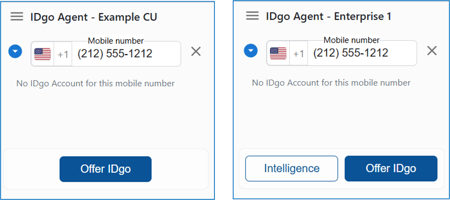
Step 2: Live agents enter the consumer's mobile number in the IDgo Agent application and click the "Offer IDgo" or "Enroll" button.
In this configuration, the data collected per account includes the consumer's first and last name. Enterprises can decide what data they would like to collect for consumers. The live agent enters the consumer's first and last name and can choose a preferred language other than the default of English for the consumer's IDgo account. The preferred language will be used in SMS and IDgo screens that the consumer sees.
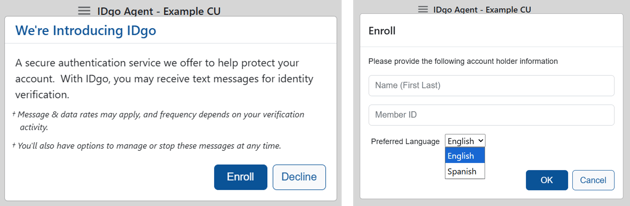
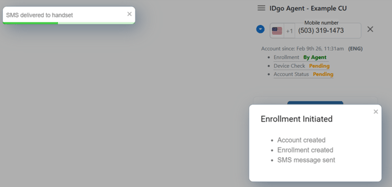
The live agent clicks on the "OK" button, which initiates an SMS being sent to the consumer's mobile phone.
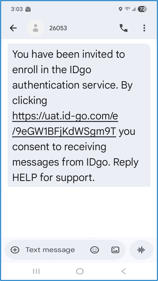
Step 3: The consumer receives the enrollment SMS on their mobile phone and clicks on the link in the SMS that takes them to the IDgo website on their mobile phone browser. The consumer then clicks on the "Enroll" button.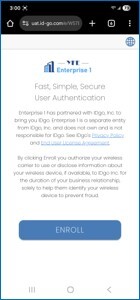
The consumer chooses to create a Passkey (which enables the use of their device security features such as FaceID, Fingerprint, device passcode or screen patten) or the consumer chooses to Register their device (which remembers their device for future use).
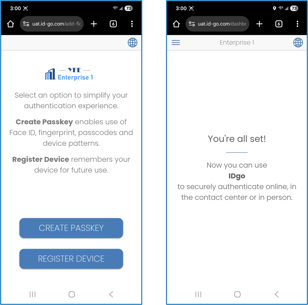
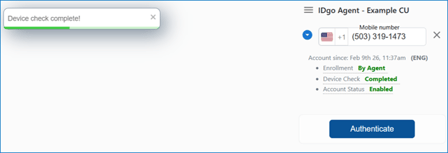
Live agents can see realtime progress of a consumer enrolling in the IDgo service, including when the SMS is delivered to the consumer's device:
IDgo Live Agent Authentication see video here
Live agents can authenticate consumers who have enrolled in the IDgo service as follows:
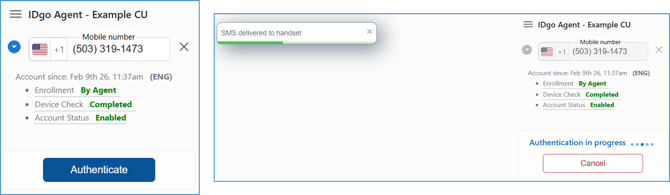
Step 1: Live agents enter the consumer's mobile number in the IDgo Agent appplication and click the "Authenticate" button, which initiates an SMS being sent to the consumer's mobile phone. Live agents can see realtime progress of a consumer completing an authentication, including when the SMS is delivered to the consumer's device:
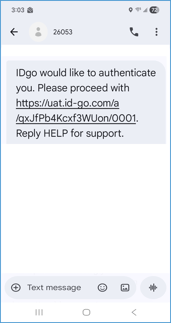
Step 2: The consumer receives an authentication SMS on their mobile phone and clicks on the link in the SMS that takes them to the IDgo website on their mobile phone browser.
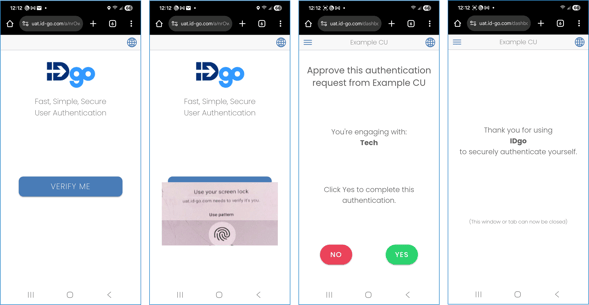
Step 3: The consumer then clicks on the "Verify Me" button and depending on whether they created a Passkey or Registered their device, they complete steps like those illustrated below.
IDgo Live Agent Revocation of an IDgo Account
IDgo accounts can be revoked by Live Agents for any reason deemed necessary by an enterprise as well as by users of IDgo. Revocation of an IDgo prevents that account (mobile number) from being used to complete an IDgo authentication.
Live Agents can revoke an IDgo account as follows:
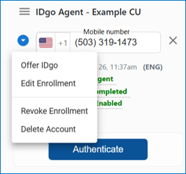
Step 1: Live Agents enter the mobile phone number for the consumer whose IDgo account they want to revoke and select "Revoke Enrollment" from the pull-down menu as illustrated below:
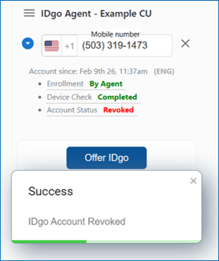
After clicking on "Revoke Enrollment" the Live Agent is presented with a dialog box to fill in the reason for revoking the account. The Live Agent can see real time feedback that the account has been revoked and the Account Status is revised to "Revoked" as illustrated below:
Users of IDgo can revoke their own IDgo account as follows:
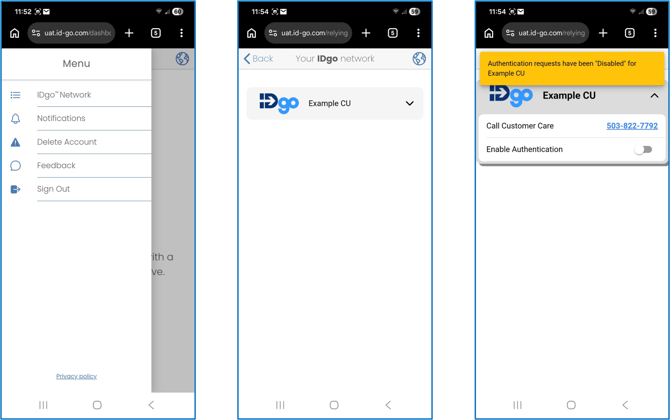
The user will need to start by receiving an IDgo authentication SMS and accessing the IDgo mobile web application on their mobile phone browser. The user then navigates to the pancake menu in the upper left of the screen and selects “IDgo Network” as illustrated here:
Within the menu the user can click on the enterprise they would like to revoke their account from and choose to disable authentication as illustrated here: